 Ankit Gandhi
Agents for Project Operations
Four AI agents inside Microsoft Project Operations that take over repetitive delivery work, designed for a Dubai-based company.
Project at Incerro for a Dubai-based client.
Overview
I designed a set of AI agents that automate project-delivery work people were doing by hand, with the aim of saving the time, effort and money those tasks cost. The client was a company based in Dubai.
The agents live inside Microsoft Project Operations, the company’s own tool, which has its own custom interface and little room for change. Fitting four agents into it, without breaking the existing layout or getting in each other’s way, was a large part of the job.
The problem
Much of the work around a project is chasing and paperwork. One example came from resource management. The resource manager had to make sure all employees in a company of about 400 people filled in their weekly work schedule. For everyone who had not, they emailed each person by hand, typing every address separately, and kept doing it until the last form came in. They also had to chase project managers whenever submitted schedules were waiting for approval.
Work like this is slow, easy to forget and hard to track at that scale. Other tasks, from writing a project charter to compiling a weekly status report, had the same pattern. The agents were designed to take that work off people’s plates.
The four agents
Each agent covers a group of use cases.
- Planning and Scheduling Agent. Generates project charters and management plans from the documents a team already has. Builds a work breakdown structure and a schedule, and suggests the skills a project needs. Drafts a risk register, with a score and a suggested mitigation for each risk. Watches delivery health and raises early warnings. Predicts what a change request does to time, budget and scope.
- Financial Analysis Agent. Compares budget with actual spend for one project or all projects, forecasts cost and cash flow under different assumptions, reports savings and overspends, and looks for budget leaks. People can ask questions at any step and export the result to Excel.
- Resource and Capacity Agent. Forecasts resource demand from the sales pipeline, shortlists the best-matched people for a booking, checks timesheet compliance and chases missing submissions, compares skills with upcoming demand, and manages resource accounts.
- Project Assistant. Produces weekly status reports, finds lessons from similar past projects, flags stakeholder sentiment, answers questions about project health, meetings and policies, tracks actions from meetings, and runs what-if scenarios.
Process
The work took 45 days.
- Discovery. I attended four discovery meetings, one for each agent. A manager explained the work on a video call, and a developer and I took notes. We checked the notes against the recording afterwards.
- Requirements. I turned the notes into requirement documents, narrowed down which problems each agent should solve, and made sure I understood what each stakeholder needed.
- User flows. For each use case I drew a flow showing how the agent helps the people involved.
- Dependencies. The agents depend on each other, so I mapped how the branches connect and where one agent’s job ends and another’s begins.
- Interface. I wireframed how each agent appears inside Project Operations and how a conversation with it runs.
- Review. I presented the work to the developers, the managers and the team. Once it was finalised, it went to the client.
How I used AI. I used AI tools to help produce the requirement documents and the flows. I checked the results myself against the meeting recordings.
The flows
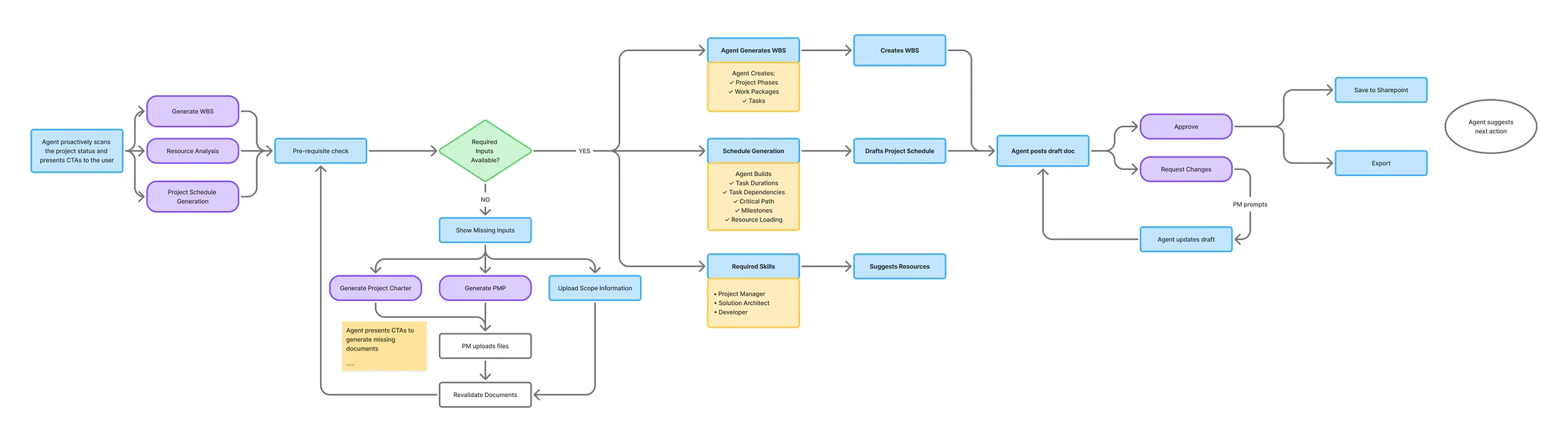
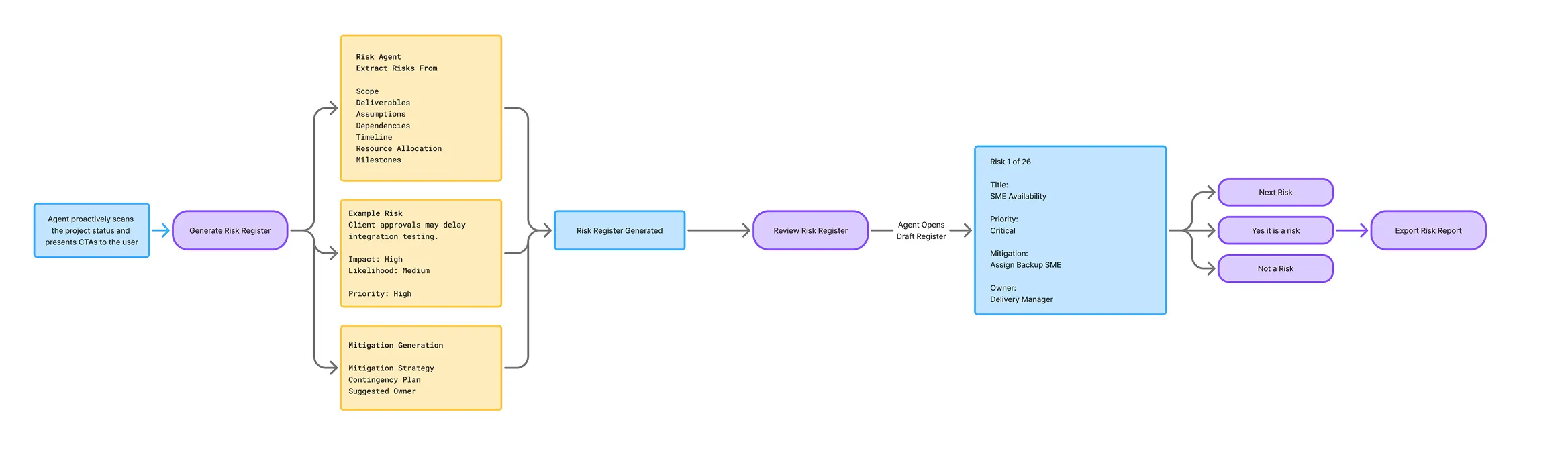
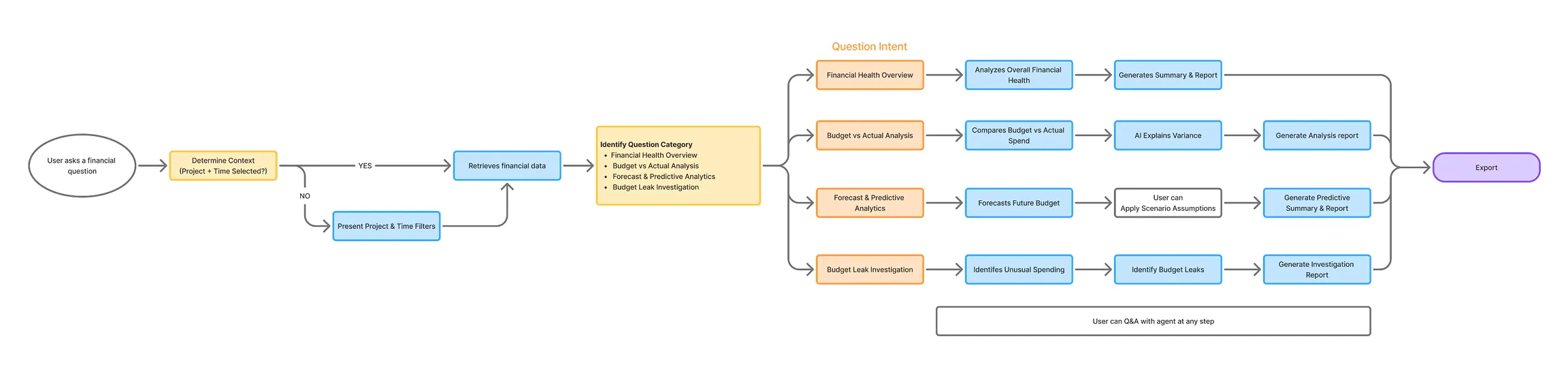
Every use case has a flow. These show the patterns that run through all of them.

Where the agents live
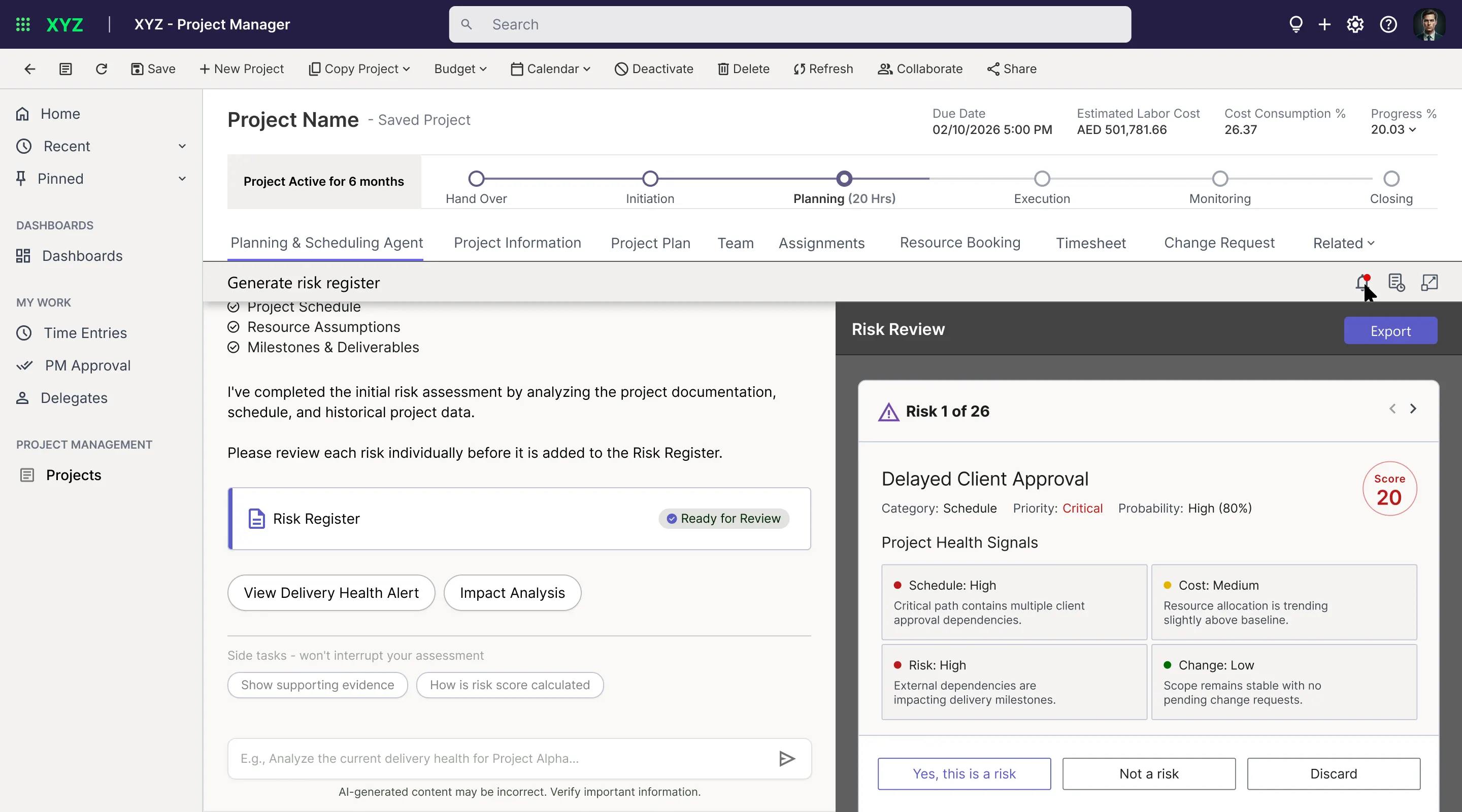
Project Operations offered little flexibility in its layout, so I planned where each agent would sit. Each one had to stay clear of the existing layout and of the other agents.
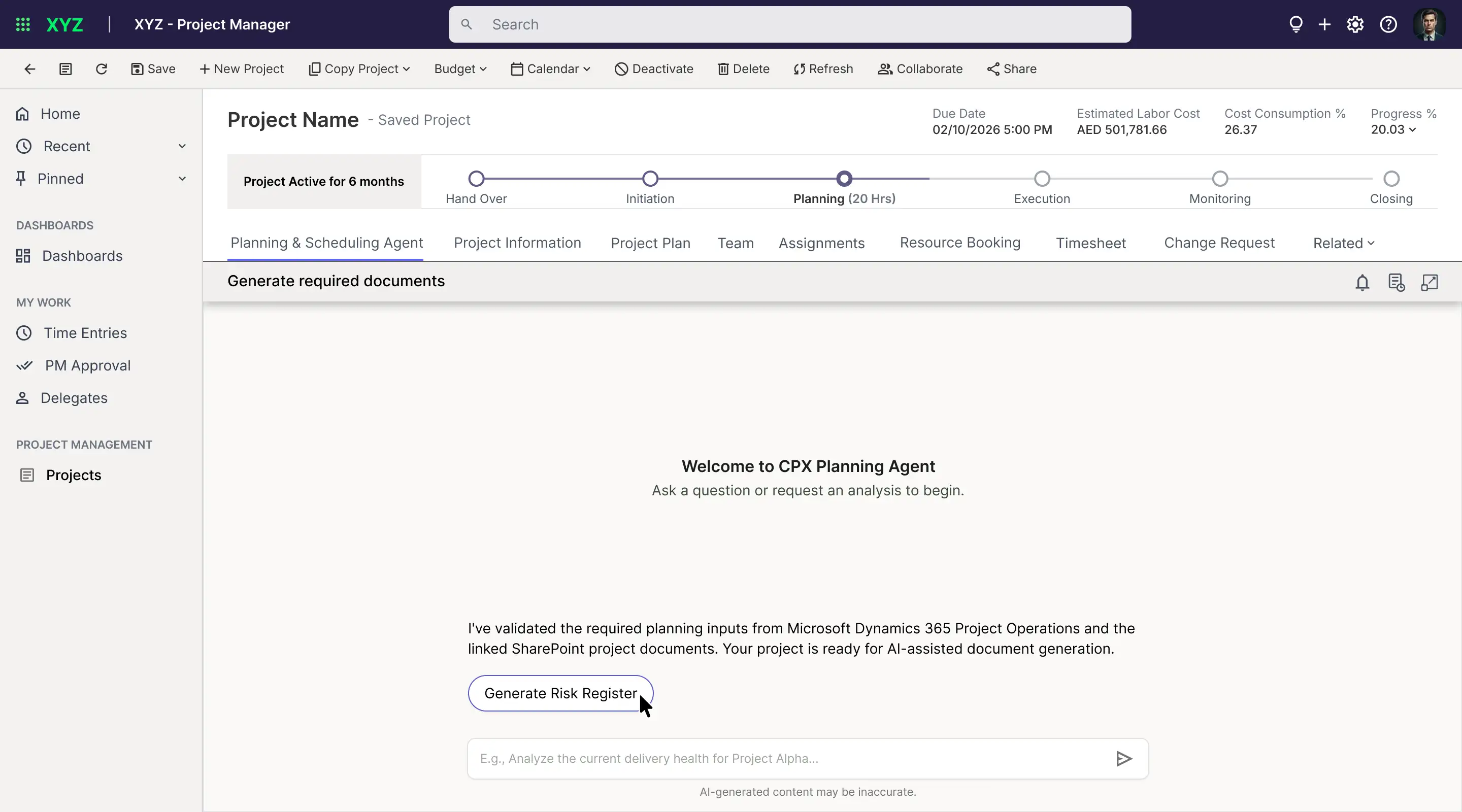
- Planning and Scheduling Agent: a tab in every project, next to the project plan, the team and the assignments.
- Financial Analysis Agent and Resource and Capacity Agent: items in the left side panel.
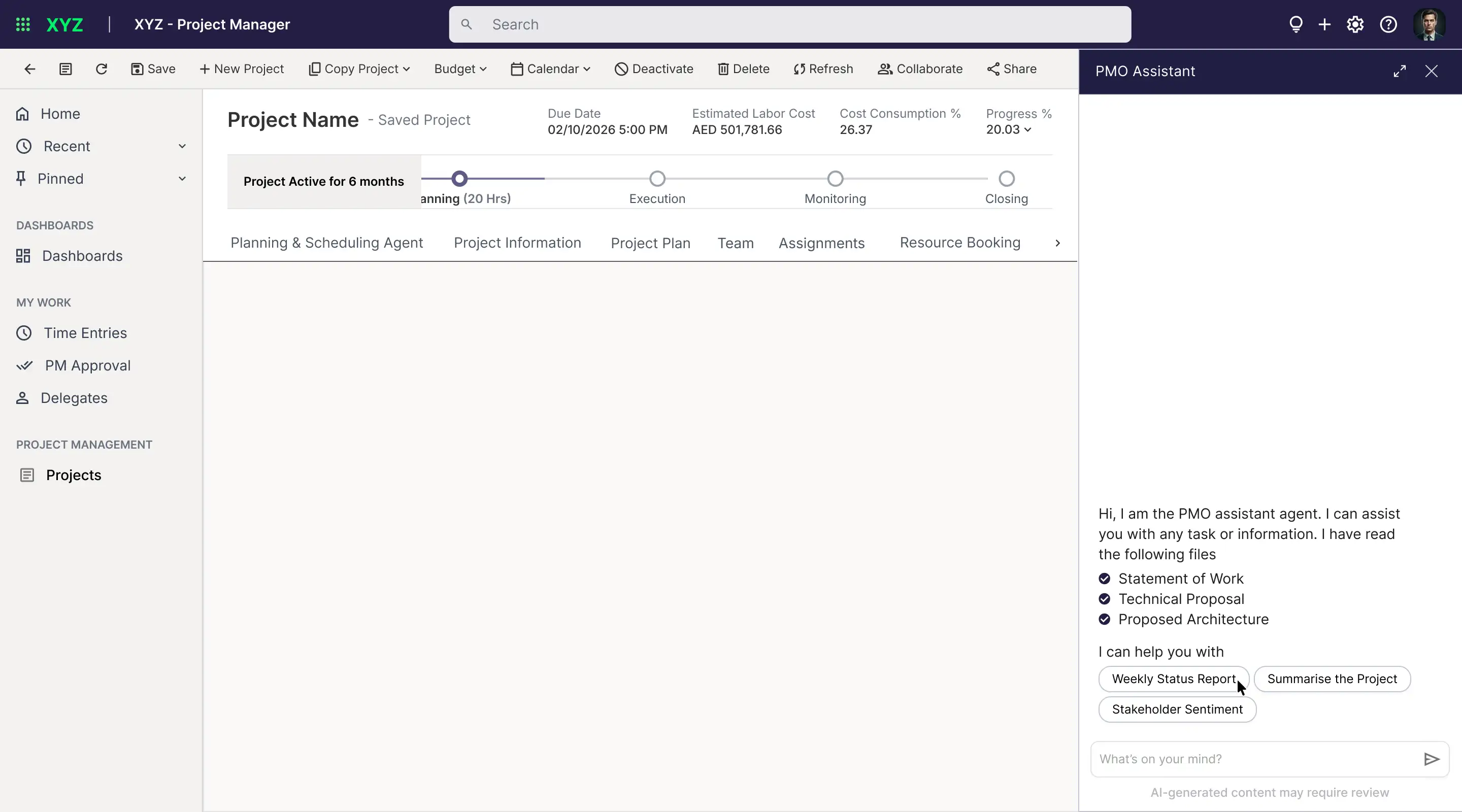
- Project Assistant: a chat button at the bottom right of the screen that opens a chat panel.
The Project Assistant was meant to float over the page like a chatbot. Project Operations does not allow that, so it became a fixed chat button that opens a panel.
Planning and Scheduling Agent
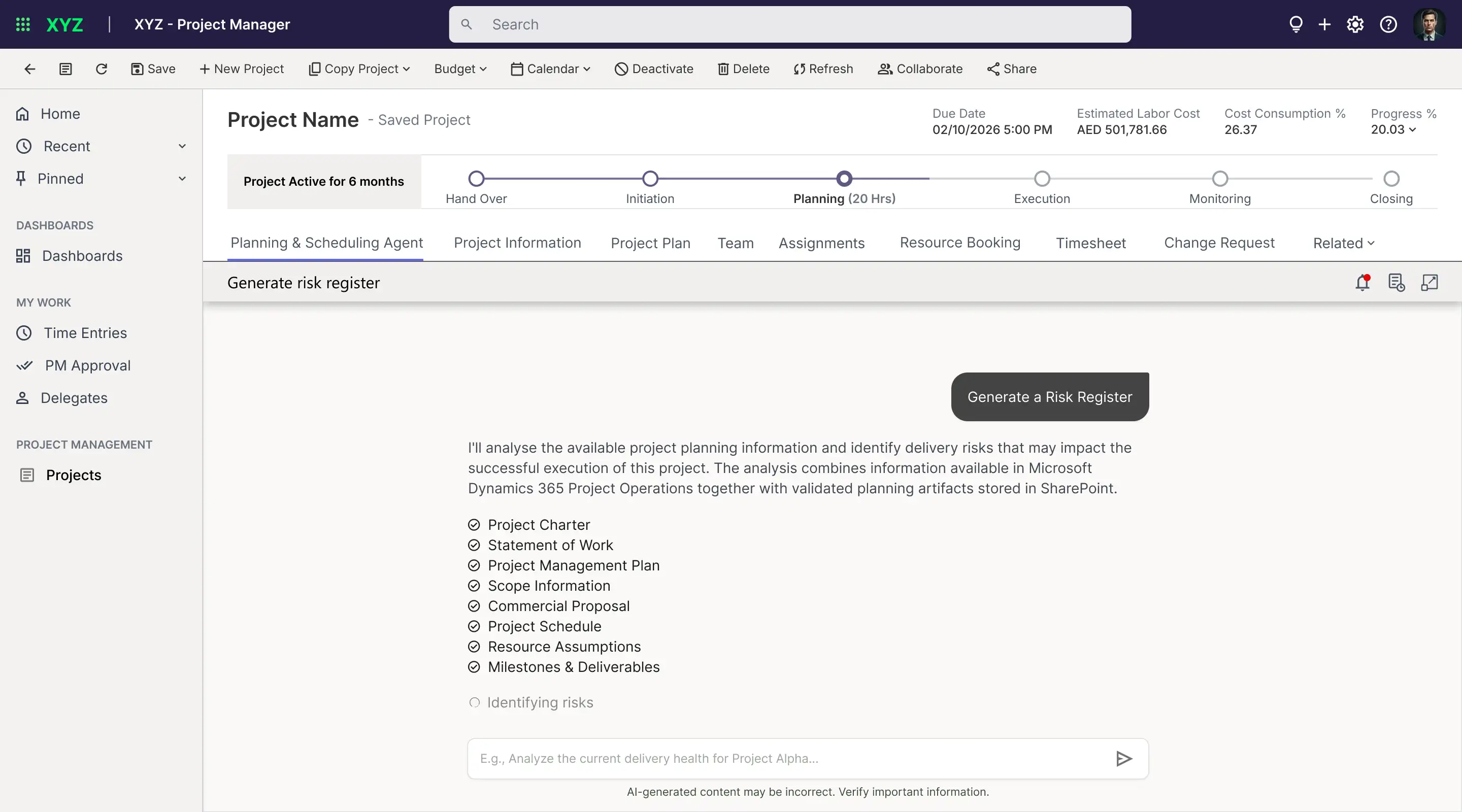
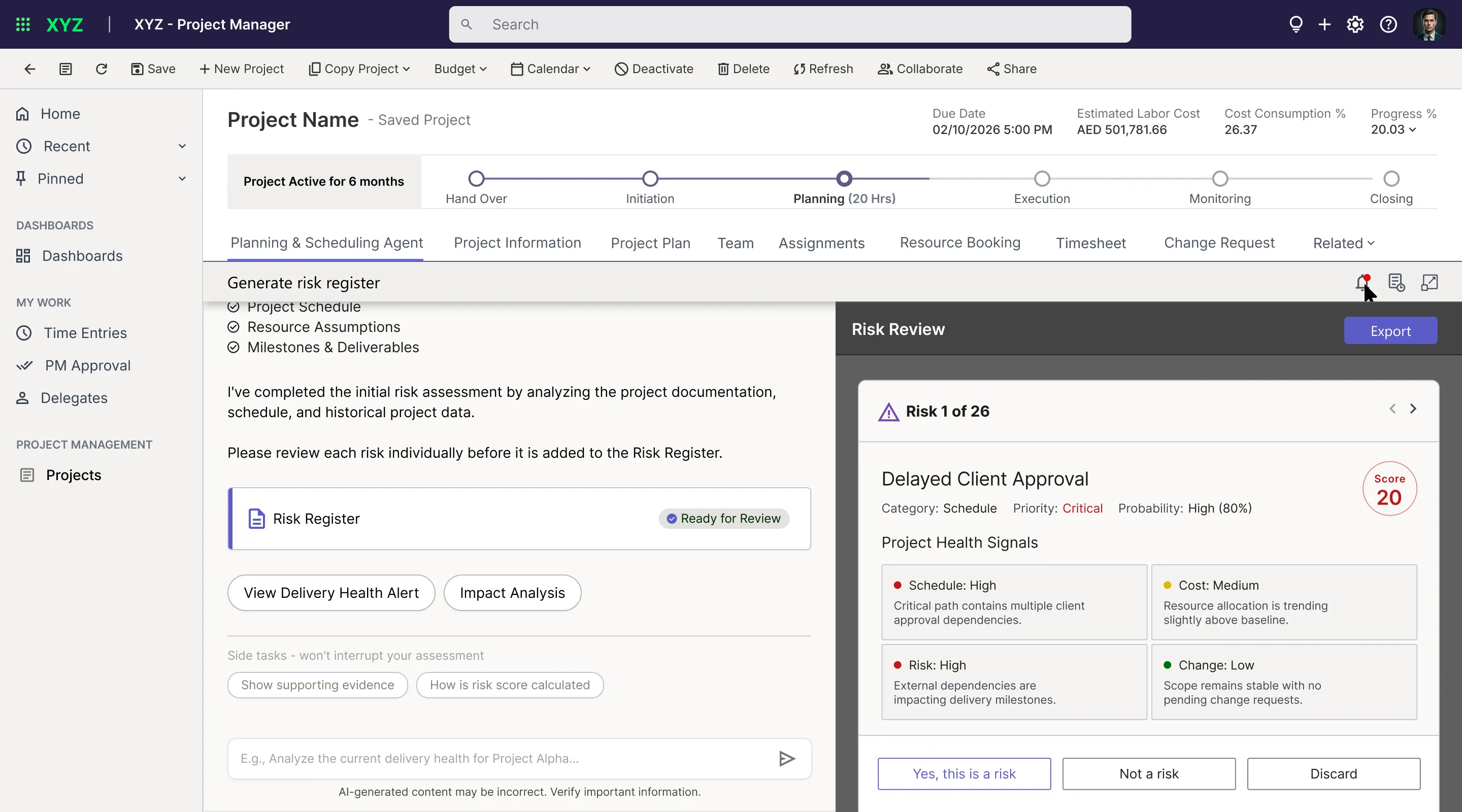
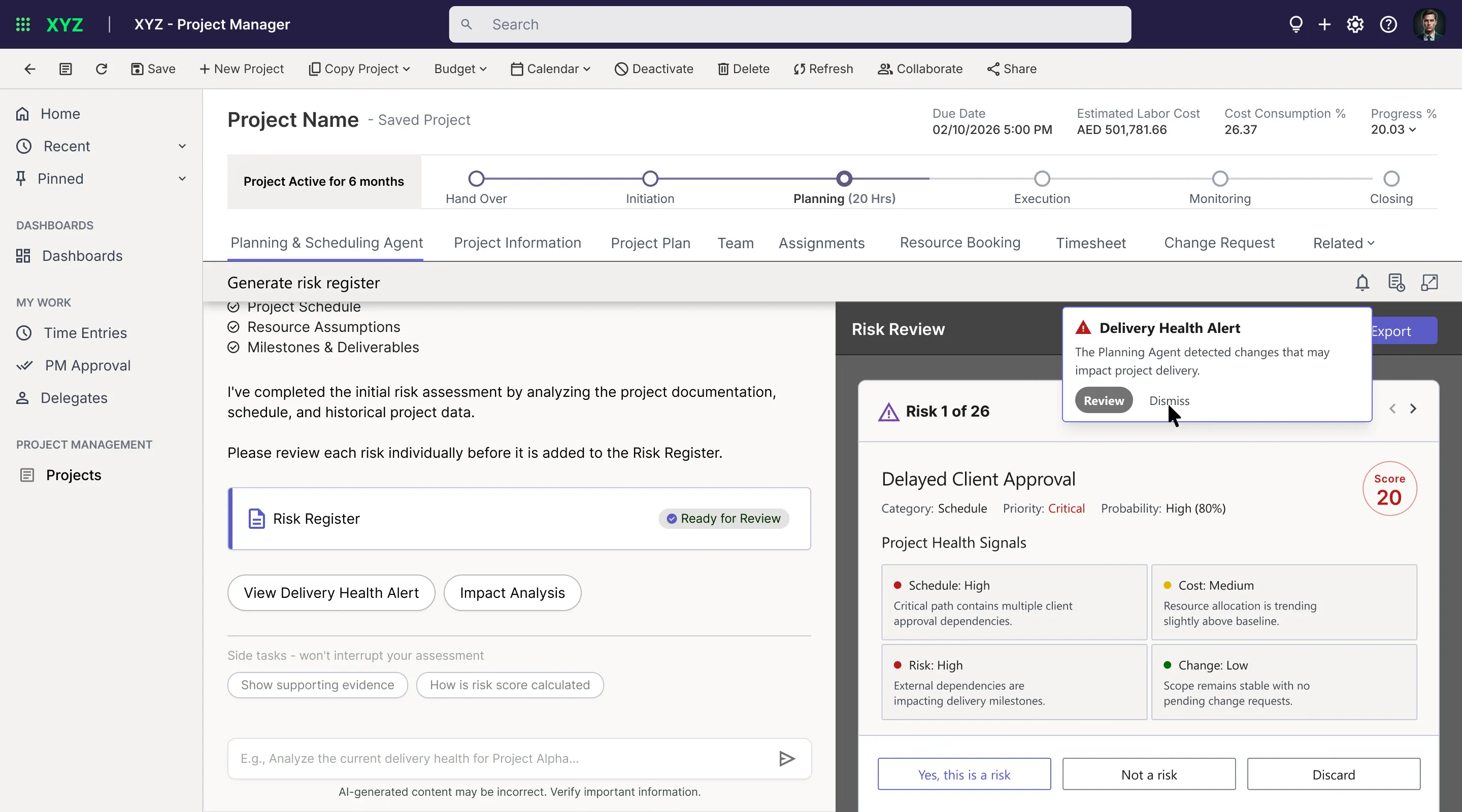
This agent lives in the project’s tab bar. When a project manager opens it, it has already checked the project and offers the next step. For a risk register, it reads the charter, statement of work, plan and schedule, finds the risks, and scores each one for impact and likelihood. The manager then reviews them one at a time and decides whether each is a risk, not a risk, or should be discarded. For a draft plan or schedule, it shows what is missing, asks for the files and checks them again before it builds anything. When a health check crosses a threshold, a badge and an email tell the manager, and the alert opens a report with the root cause, the impact, a forecast and a recommendation.
Financial Analysis Agent
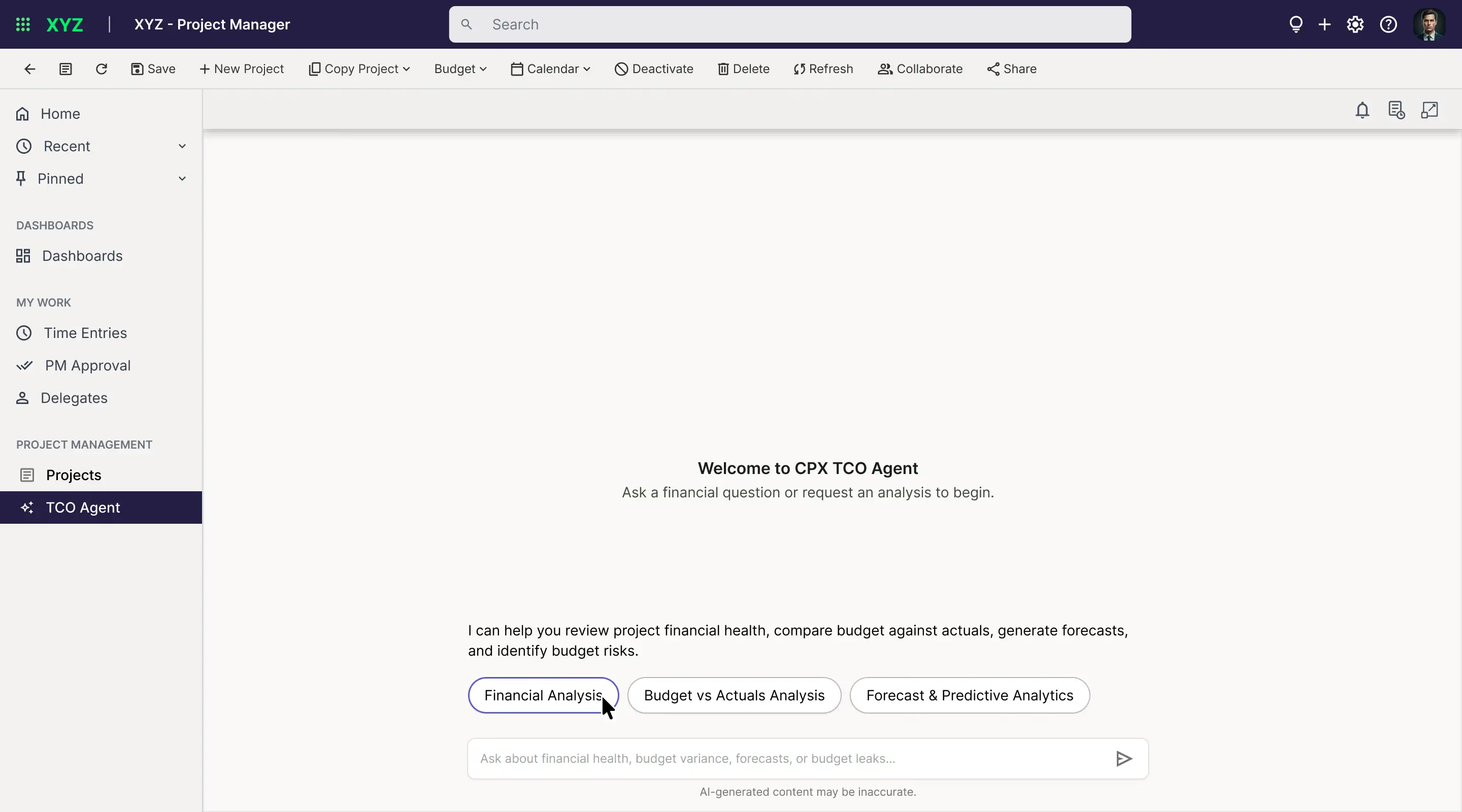
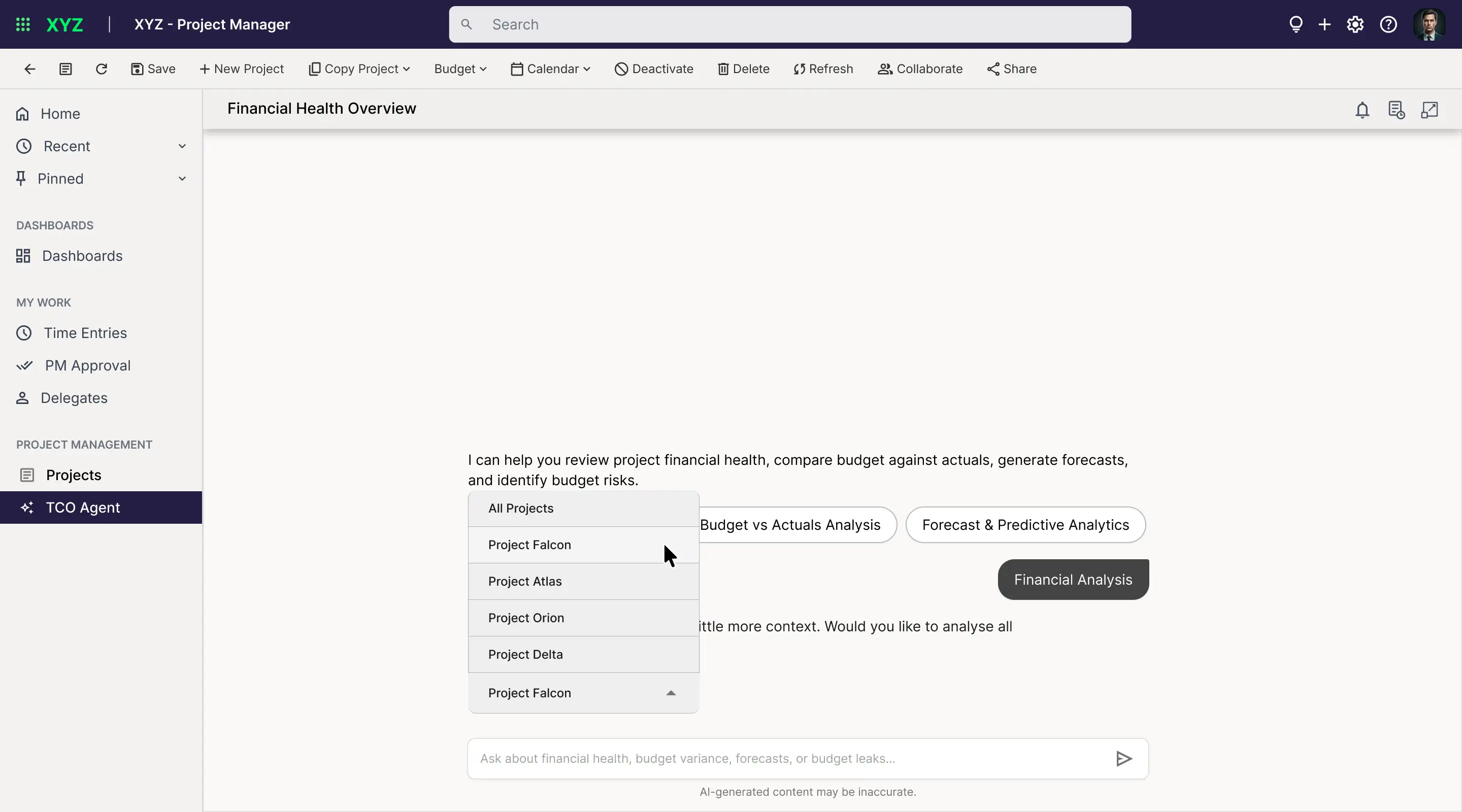
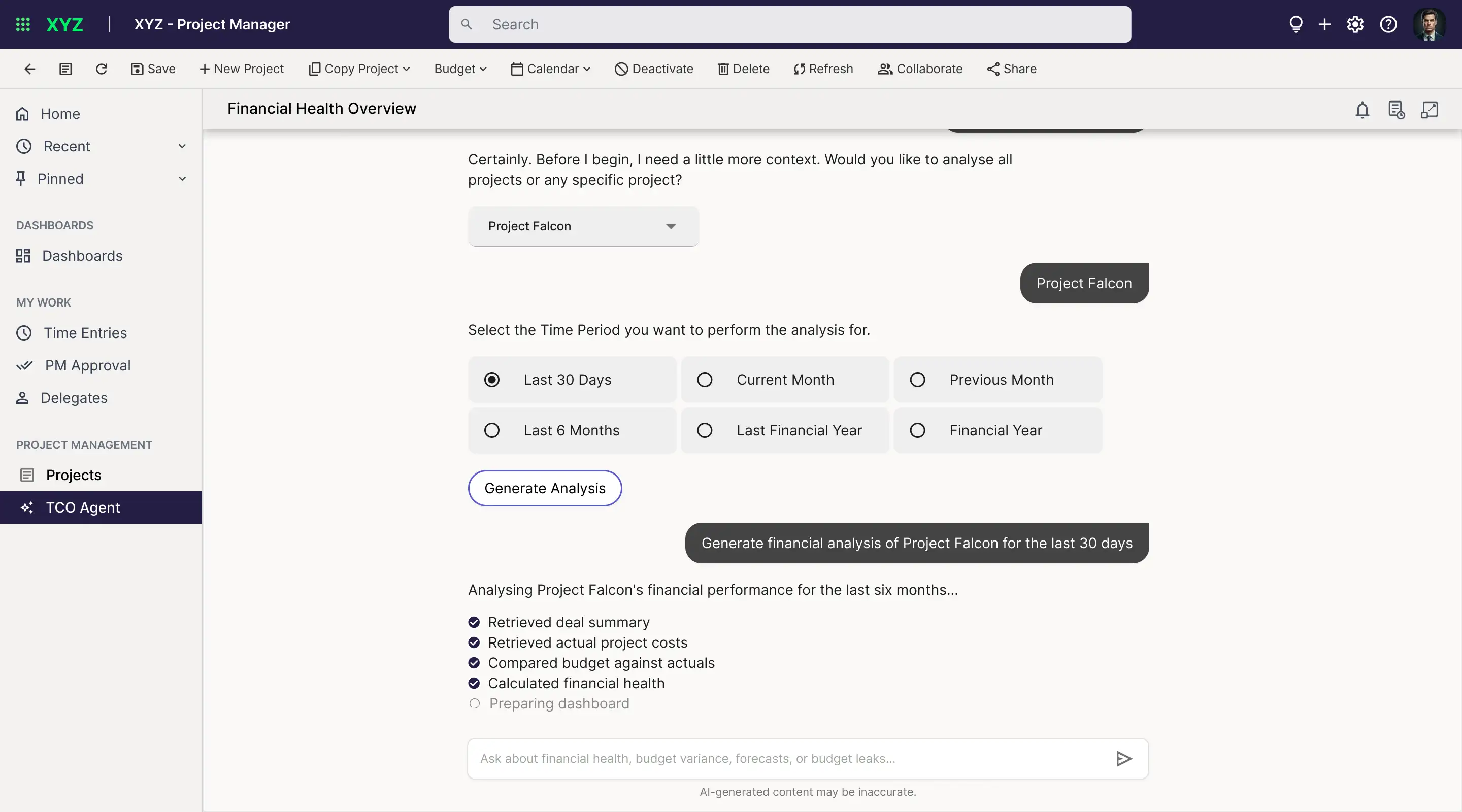
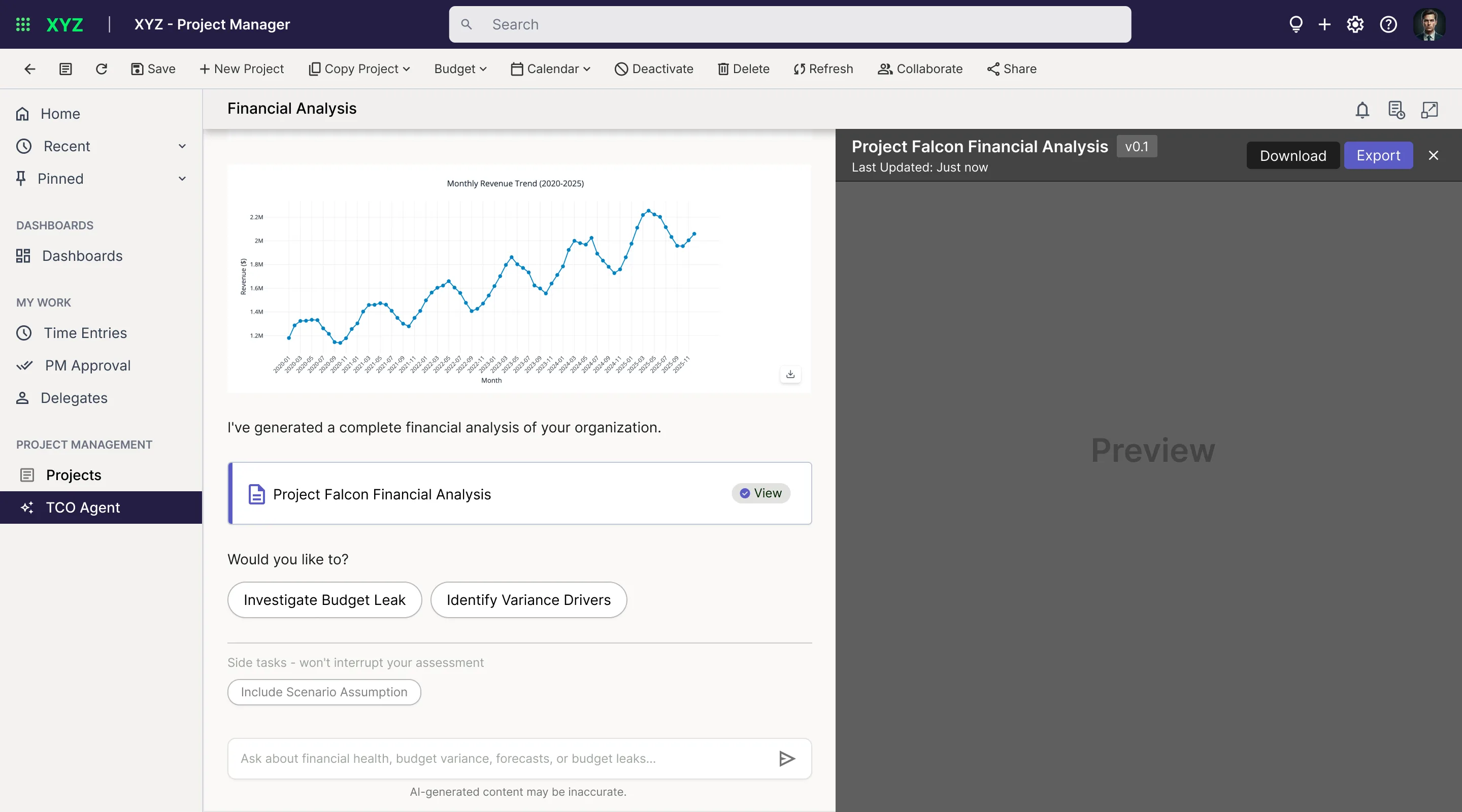
This agent answers financial questions for one project or all projects. It starts by asking for the two things it needs, the project and the time period, with a dropdown and buttons instead of free text. It then compares the approved budget with actual spend, explains the main drivers of the variance in plain words, and opens a report in a preview panel with download and export. The person can follow up with suggestions such as investigating a budget leak, identifying variance drivers, or adding scenario assumptions, and can ask questions at any step.
Resource and Capacity Agent
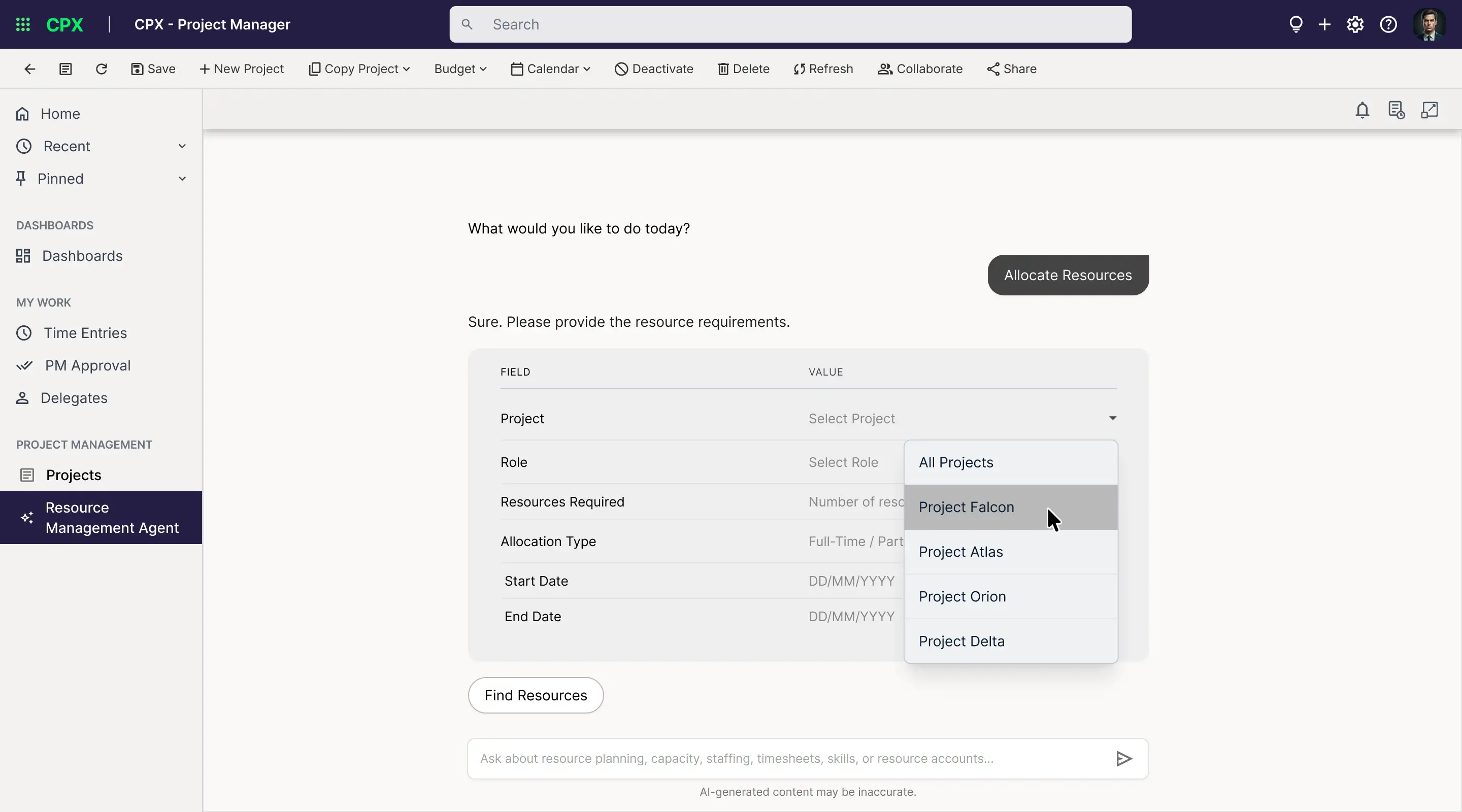
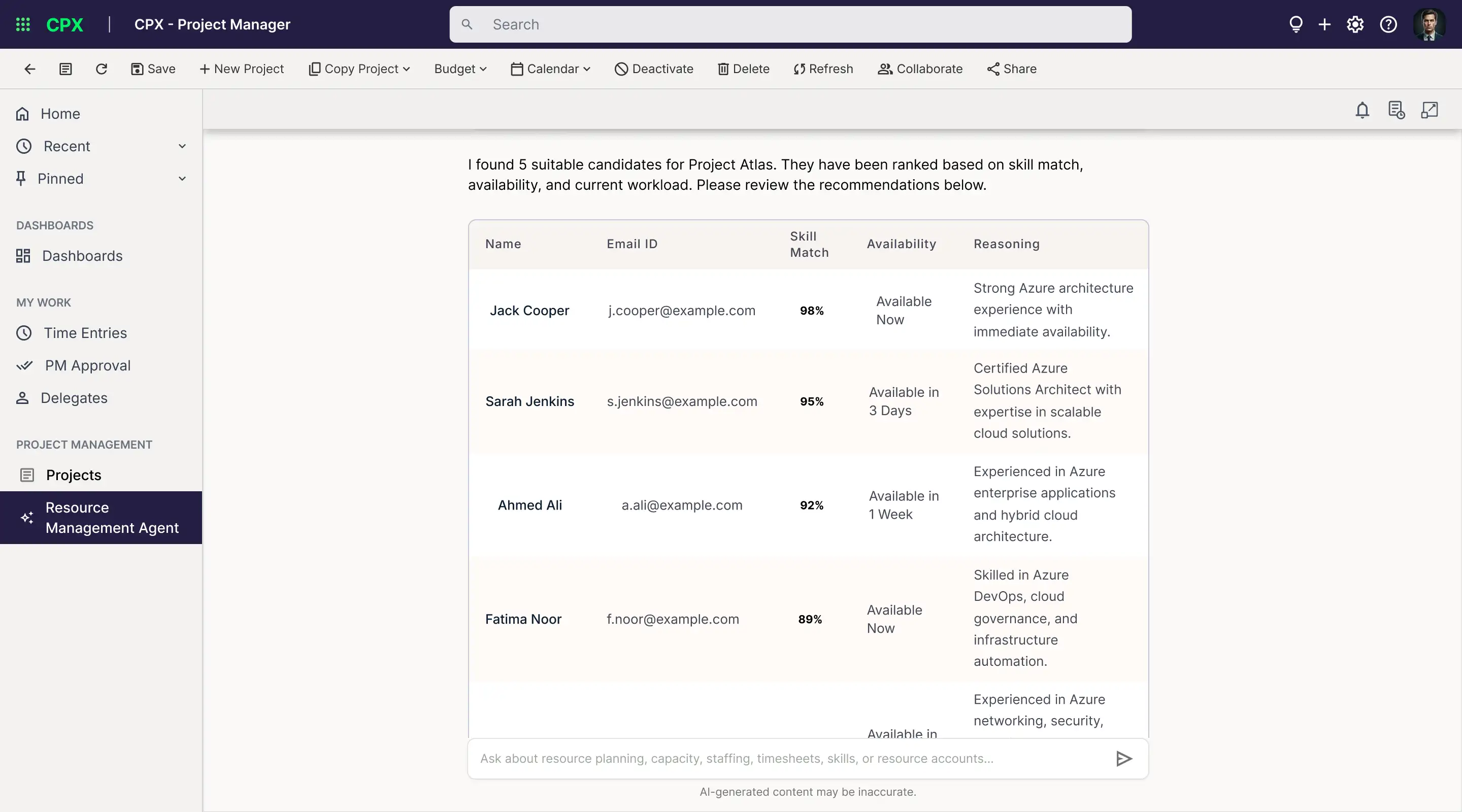
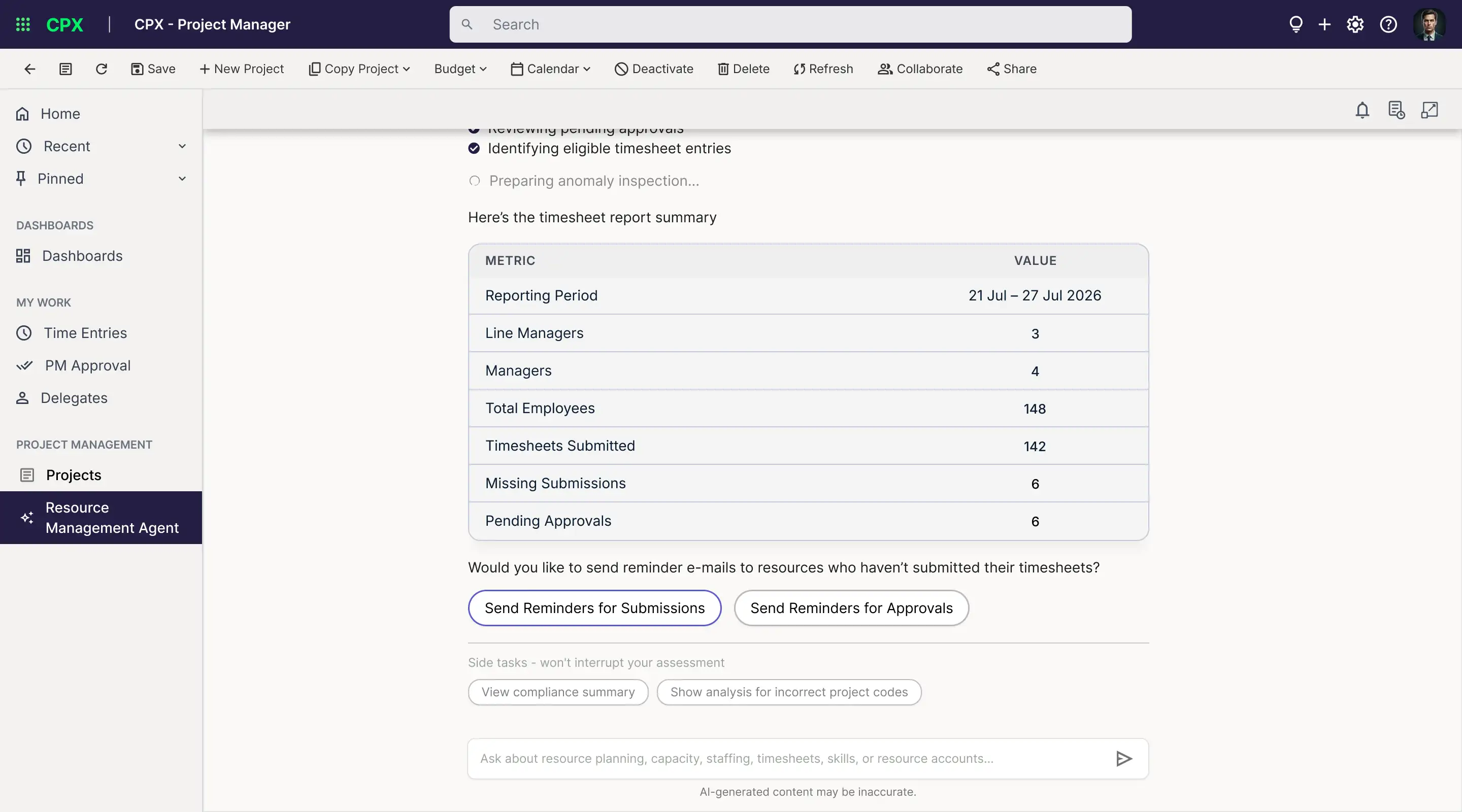
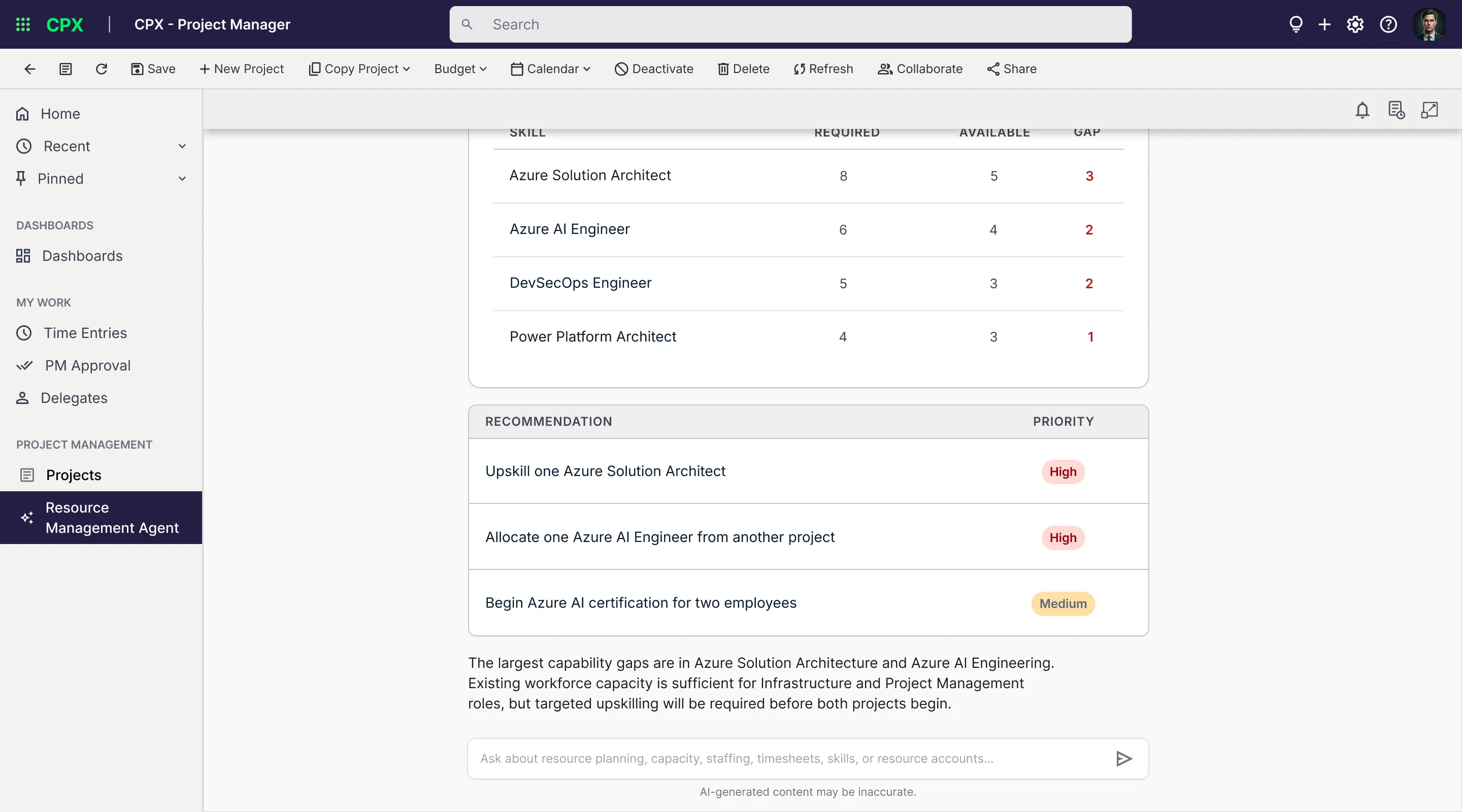
This is the agent for the resource manager, and it covers the work described in the problem above. To find people for a booking, the manager fills in a short form (project, role, number of people, dates). The agent shows its steps while it searches, then ranks candidates by skill match, availability and workload, with a reason for each, and sends the shortlist to the resource manager for approval. For timesheets, it shows who has not submitted and which approvals are pending, and offers to send reminders for submissions or approvals, which it sends only after the user chooses to. It also flags timesheet entries that look wrong. For skills, it compares what the workforce can do with upcoming demand and shows the gaps, a readiness score and prioritised recommendations. Any change to a resource account needs human approval.
Project Assistant
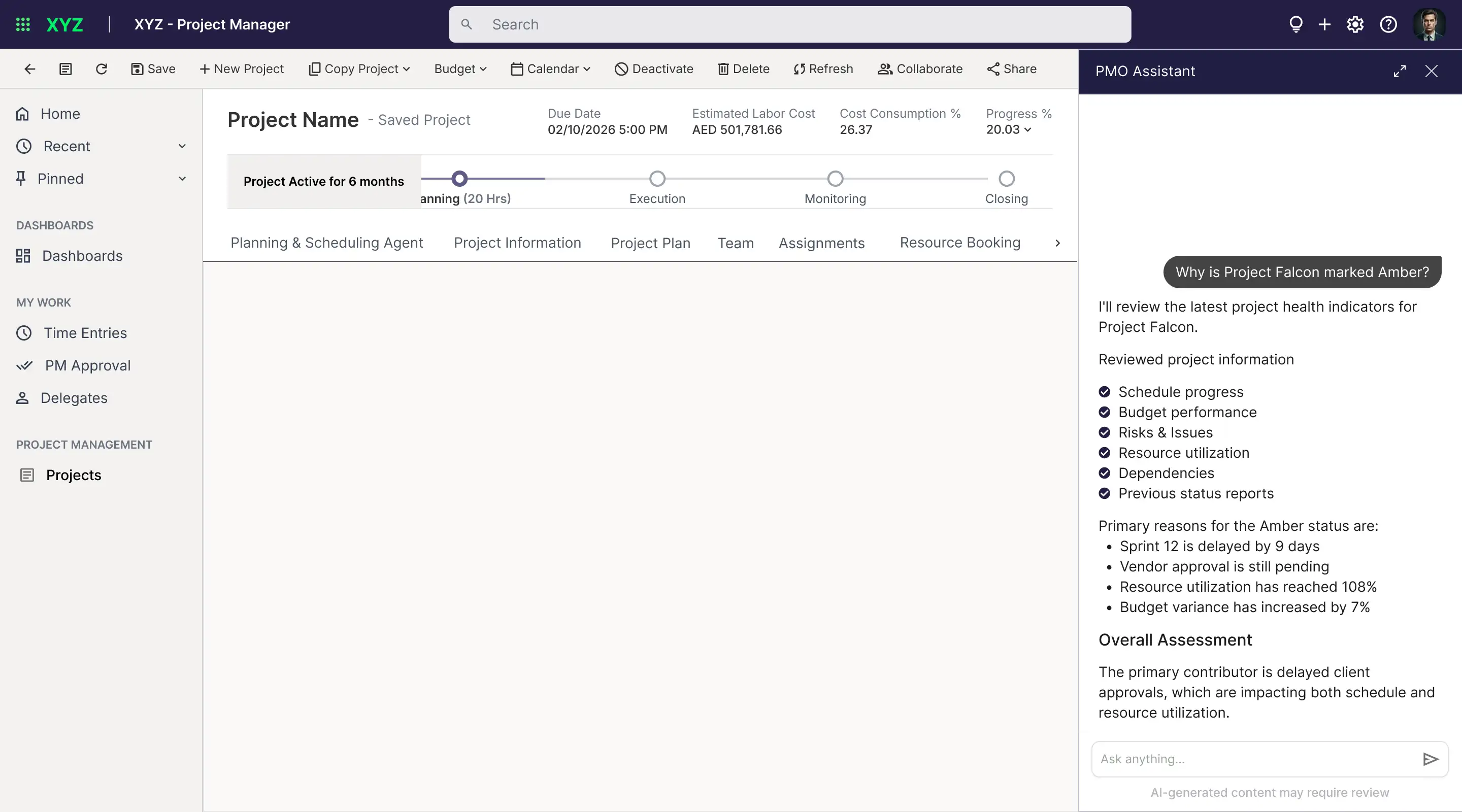
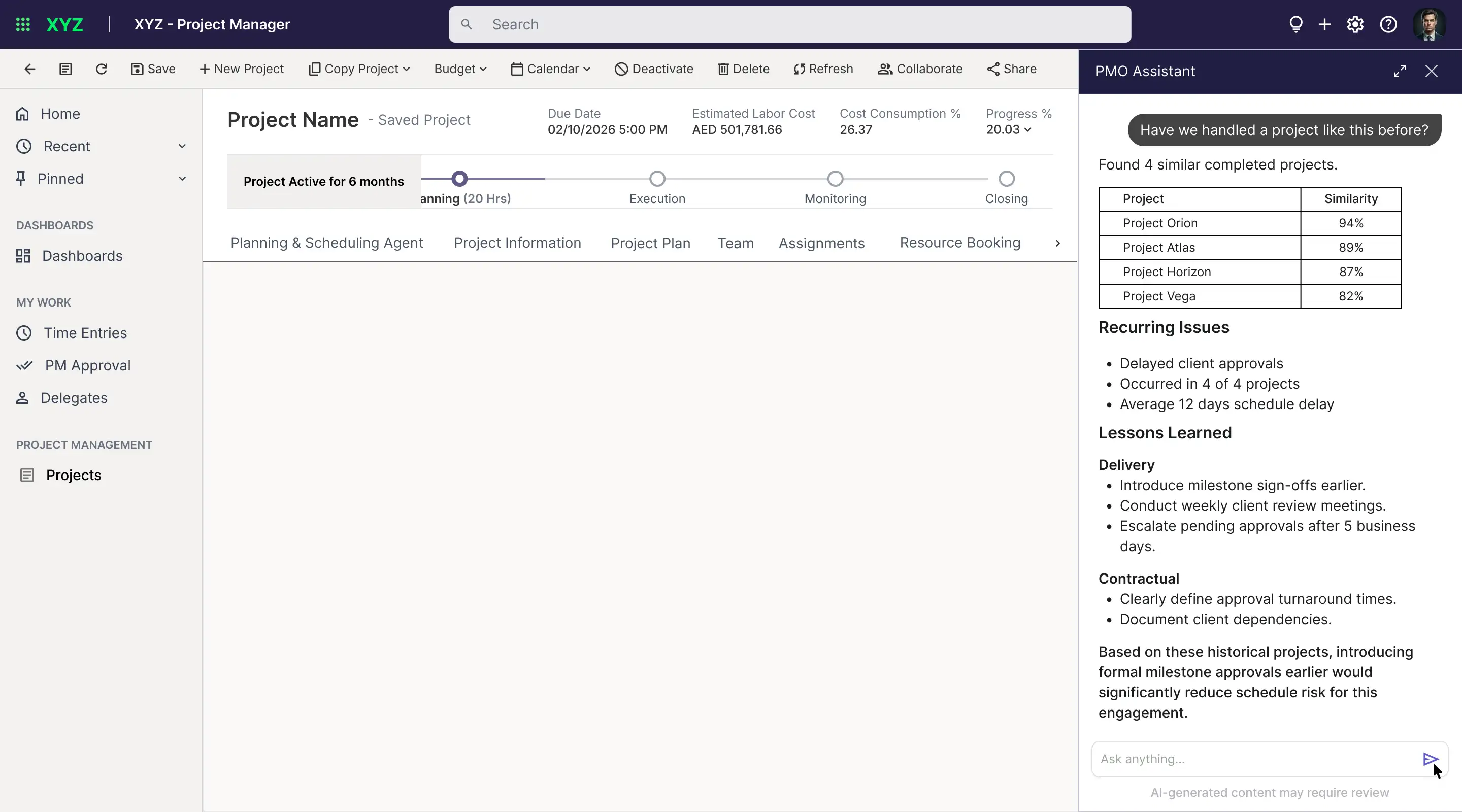
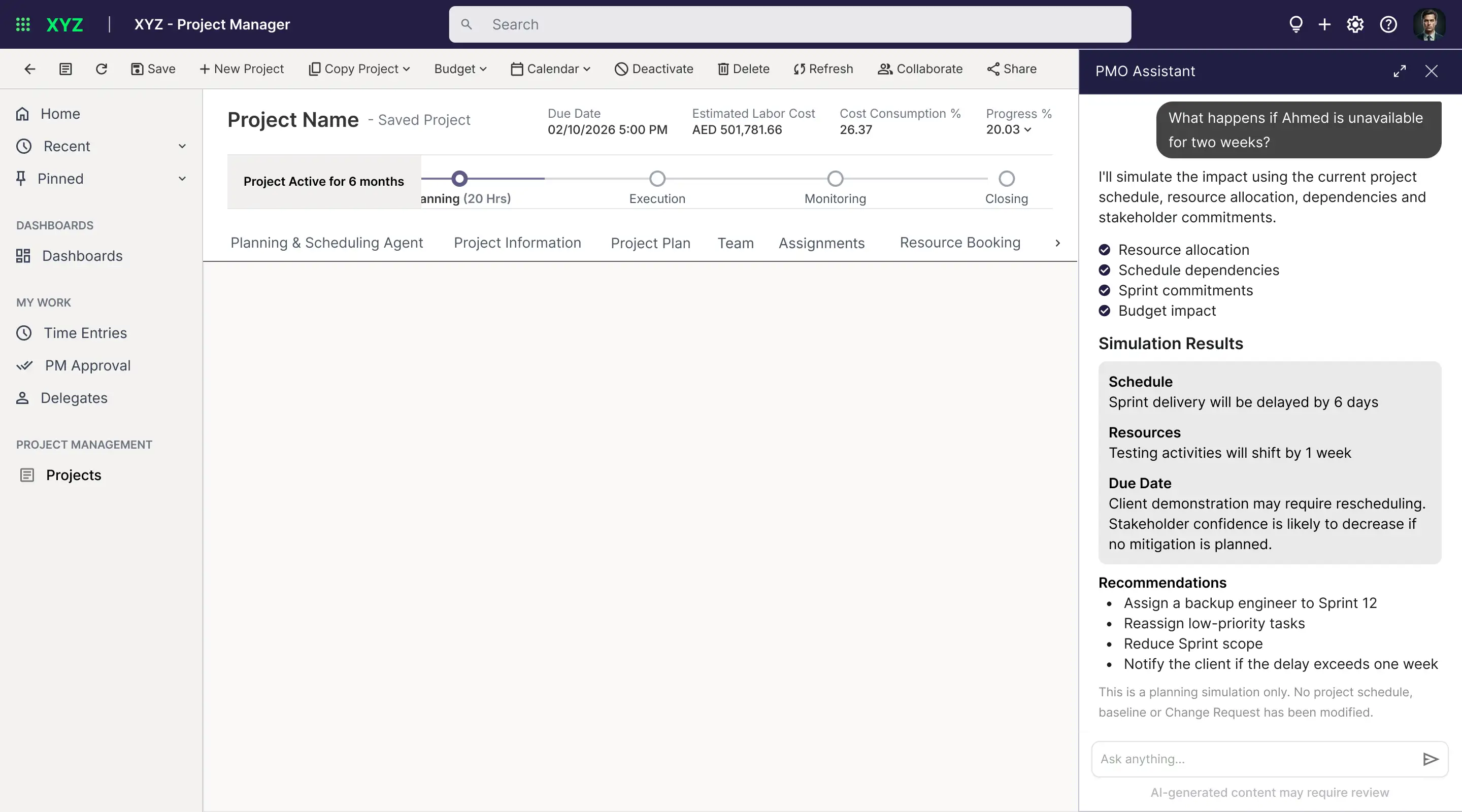
The assistant opens in a panel from the chat button and begins by listing the documents it has read, so people can see what it knows, and offers suggested actions: a weekly status report, a meeting summary, stakeholder sentiment, or a project brief. It answers questions such as why a project is marked amber, finds similar past projects with a similarity score and the lessons from them, and analyses sentiment in a meeting, with a confidence figure and an overall rating. For a meeting, it reads the transcript, lists the action items with a suggested owner and due date, and drafts follow-ups for the project manager to review. It never sends them on its own. A what-if question, such as what happens if a team member is away for two weeks, returns a simulation with the effect on schedule, testing, the client demo and stakeholder confidence, and a note that nothing in the project was changed.
Design decisions and considerations
These are the choices that shaped the agents, with the reasoning and what each one costs.
- Put each agent where the work already happens
Project Operations has little room to change its layout, so each agent sits where people already look: a tab in the project, items in the side panel, and a chat button at the bottom right. That keeps the existing interface intact and keeps the agents out of each other’s way. Trade-off: an agent in a tab or a panel is less visible than one that floats over every screen.
- Give every agent the same conversation
Every agent opens with a welcome and suggested actions, asks for what it needs, shows its progress, gives a result and offers next steps. People learn the pattern once and can use all four agents. Trade-off: a shared pattern fits some tasks better than others.
- Guide the input instead of starting from a blank box
When a task needs a project, a period, a meeting or a set of staffing requirements, the agent offers a dropdown, buttons or a short form, and the free-text box stays available. That cuts typing and mistakes for people who do not want to write prompts. Trade-off: more screens to design, and guided input can feel rigid to expert users.
- Show the work
Before it answers, the agent shows what it is doing as a checklist, such as matching skills, checking availability and reviewing bookings, and the assistant lists the documents it has read. People can see what an answer is based on. Trade-off: more text on screen, which has to stay short.
- The agent proposes, a person decides
Risks are reviewed one at a time before they enter the register. Booking shortlists go to the resource manager for approval. Reminder emails go out only after the user chooses to send them. Account changes need human approval, and a what-if simulation says that nothing was changed. Trade-off: more steps than full automation, in return for trust in a tool that works on the company’s records.
- Show how sure the agent is
Candidate matches, similar projects, sentiment results and suggested owners come with a percentage, and low-confidence results are flagged. Trade-off: numbers can look more exact than they are, so each one sits next to a short reason.
- Let people ask without losing their place
Small side tasks, such as showing supporting evidence or explaining how a score is calculated, sit below the answer and are marked as not interrupting the main task. Trade-off: more options on screen, which is why they stay small.
- Turn answers into documents
Reports open in a preview panel with a version number and download and export options, so an analysis can leave the chat as a file people already use. Trade-off: the preview takes up screen space.
- Say plainly that it can be wrong
Each conversation carries a short note that AI-generated content may be inaccurate, and early outputs are treated as advisory. Trade-off: a warning can lower confidence, so it is kept brief.
- Keep the agents separate but connected
The agents share signals instead of repeating them. The assistant answers health questions from the same signals as the early-warning feature, with no second health model, and what-if analysis stays separate from the formal change-request impact. I mapped these links so each use case has one owner. Trade-off: a change to a shared input can affect several agents.
Outcome and what I learned
Outcome. The agents were built and delivered.
What I learned
- Designing inside someone else’s interface starts with its limits. Knowing what the platform allowed shaped every decision.
- Agents that touch a team’s records need a person in control. Approvals and visible confidence build trust.
- When several agents share data, map the connections early. It stops two agents from doing the same job or contradicting each other.
- One consistent pattern across agents makes a new tool easier to trust and learn.